Make acknowledgement required
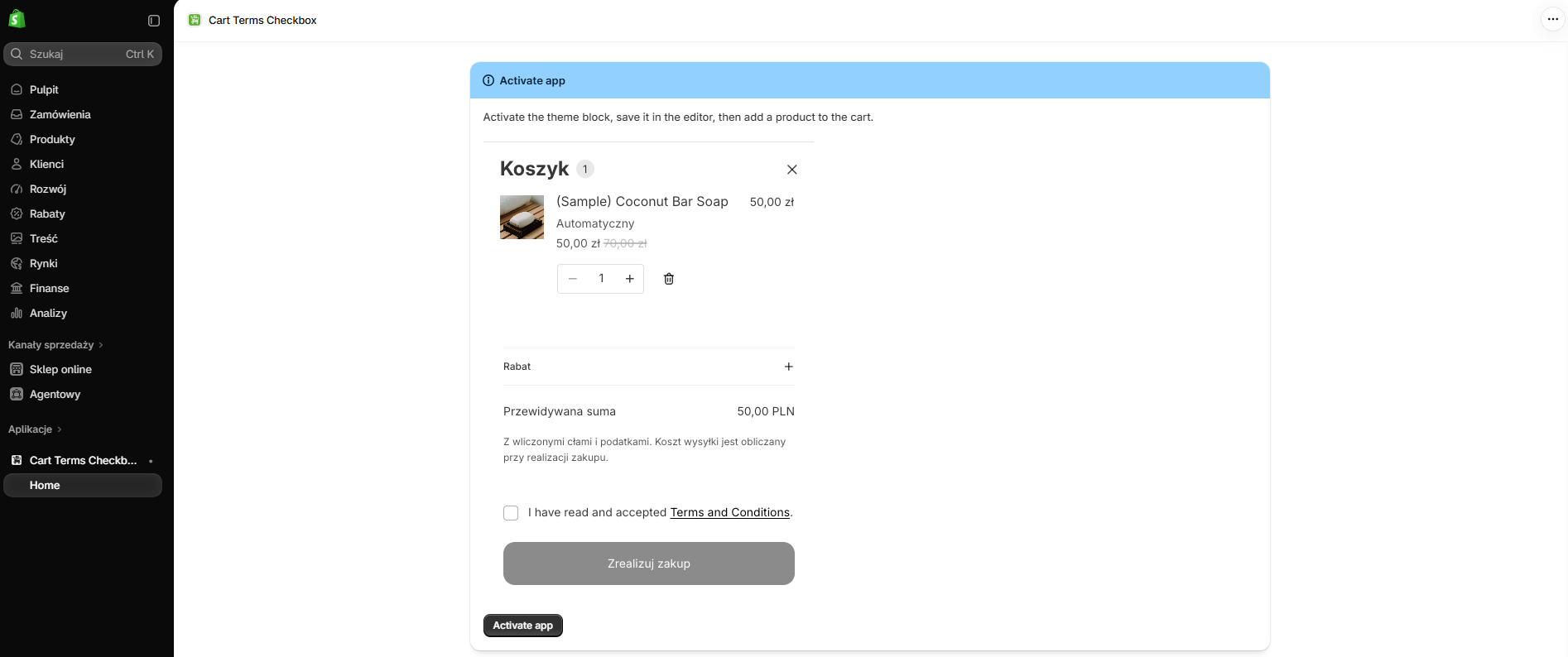
Customers must select the checkbox before the cart lets them continue to checkout.
Cart Terms Checkbox adds a required acknowledgement next to the checkout action. Set the wording and supporting information in your theme, then shoppers can continue after they accept.
What it does
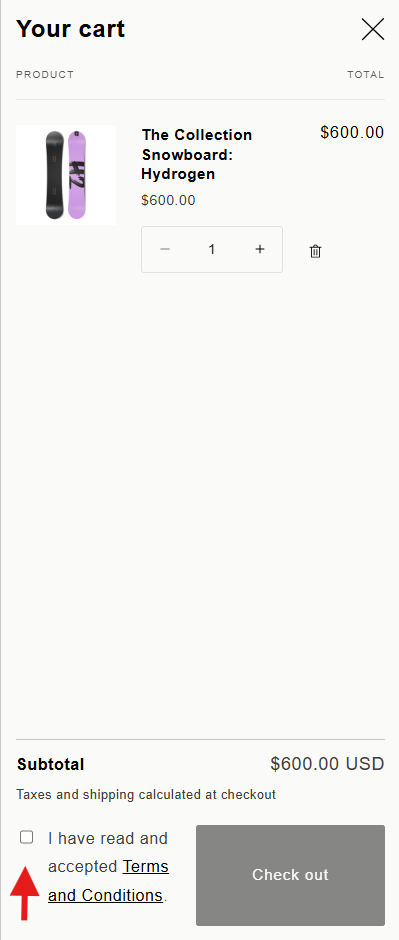
The app places a configurable terms checkbox in the cart, close to the checkout button. The button stays unavailable until the customer checks the box. The consent label can link to your terms or another relevant store policy.
Customers must select the checkbox before the cart lets them continue to checkout.
Write a clear consent label and link its text to the terms page you want customers to read.
Add an introduction and up to four short information items near the consent step
Getting started
The block is configured in Shopify's theme editor. The exact menu labels may vary slightly with your Shopify admin and theme version.
01 · Install the app
Open Cart Terms Checkbox and complete the Shopify installation flow for your store.
02 · Open your theme editor
OIn Shopify Admin, go to Online Store → Themes and choose Customize for the theme you want to update.
03 · Add the app block
Open the cart or cart drawer section, add the app block named “ToS Checkbox & Info,” and place it near the checkout button.
04 · Configure and preview
Set your text and optional details, save the theme, then test the cart with the checkbox both unchecked and checked.
Configure the block
Use the block settings to connect the checkbox to your store's policy and show only the information customers need before checkout.
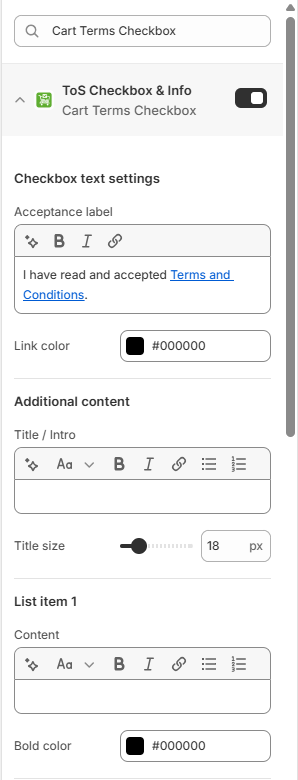
Edit the checkbox label and add a link to your terms and conditions or another relevant page. Choose the link color to suit your theme.
Add optional rich text above the list and adjust its title size.
Add short rich text items, such as delivery or returns reminders. You can set the bold text color for each item.
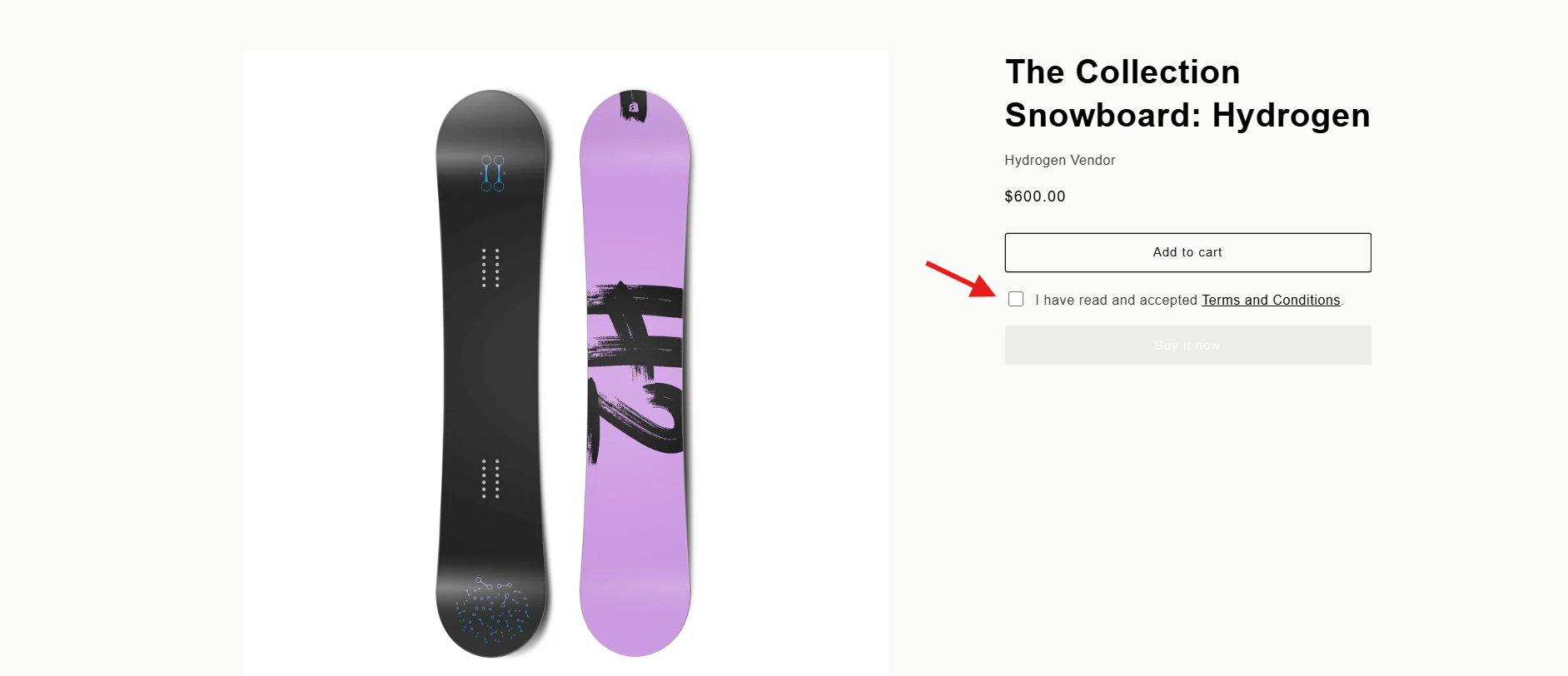
The extension looks for common Shopify checkout buttons in the cart and cart drawer, and can place the checkbox by accelerated checkout buttons on product pages. Preview your theme to confirm placement and behavior.
In the theme block settings, enter a CSS selector for the element where the checkbox should appear and choose whether it goes before or after that element. Leave the selector empty to place it before the checkout button.
Normal checkout is protected by the theme checkbox. To also protect accelerated checkout, open the app and select “Enable express checkout protection.” This adds server-side cart validation that checks whether terms were accepted.
When a customer checks the box and proceeds to checkout, the app can send an acceptance event with a timestamp and available IP information.
Before publishing: check that the link opens the intended policy page and that the app block appears in every cart view your store uses.
A practical setup checklist
Common questions
Yes. The checkout action is disabled until the customer selects the checkbox. The customer can then continue through the normal checkout flow.
Yes. Edit the acceptance label in the app block settings and include the link to the terms or policy page you want customers to open.
Yes. The block includes an optional title or introduction and up to four configurable rich text items.
You can adjust the title size, link color, and bold text colors for the information items from the theme editor.
The app supports sending an acceptance event when the customer proceeds to checkout. The event includes a timestamp and available IP information.
Open Cart Terms Checkbox in Shopify admin and select “Enable express checkout protection.” The app adds server-side validation for accelerated checkout. Normal checkout remains protected by the theme checkbox.
Yes. In the theme block settings, enter a CSS selector and choose to place the checkbox before or after the matching element. Leave the selector blank to use the default placement before the checkout button.
The extension supports common cart and cart drawer checkout buttons. Theme markup differs, so test the block in your own storefront and contact support if the button is not detected as expected.
Ready to configure your cart?
Install Cart Terms Checkbox, add its theme block, and preview the customer flow in your storefront.